

This article is part of the Launchpad Agent Skills series.
Why use a WebEmbed?
Launchpad is powerful on its own, but your users don’t always live inside Launchpad. They live in partner portals, marketing landing pages, HR systems, customer self-service sites, and internal tools. WebEmbed lets you drop a Launchpad experience — a case creation form, an assignment, or an entire landing page — directly into any of those host applications using a single <pega-embed> web component.
Here’s when it shines:
- Capture data from multiple channels into one case type. A sales team can embed the same Lead intake form on partner portals, campaign landing pages, and the corporate site — all flowing into one Launchpad case type with consistent validation and routing.
- Reuse Launchpad logic in existing applications. If your onboarding workflow, claims intake, or approval process is already modeled in Launchpad, you don’t need to rebuild it. Embed it where your users already are.
- Avoid context switches. Users stay in the host application. No redirects, no separate login screens (with PKCE), no “where did my tab go?” confusion.
- Surface assignments and dashboards in custom portals. Your internal portal can list tasks and open them in-place via the embed, rather than bouncing users to a separate Launchpad URL.
The net effect: Launchpad becomes a composable piece of your broader application architecture instead of a standalone destination.
How to use this agent to create a WebEmbed
This repository ships with a launchpad-webembed skill that knows how to scaffold a correct, production-ready embed. Here’s how to drive it.
Step 1 — Ask the agent to create an embed
Start with a simple prompt:
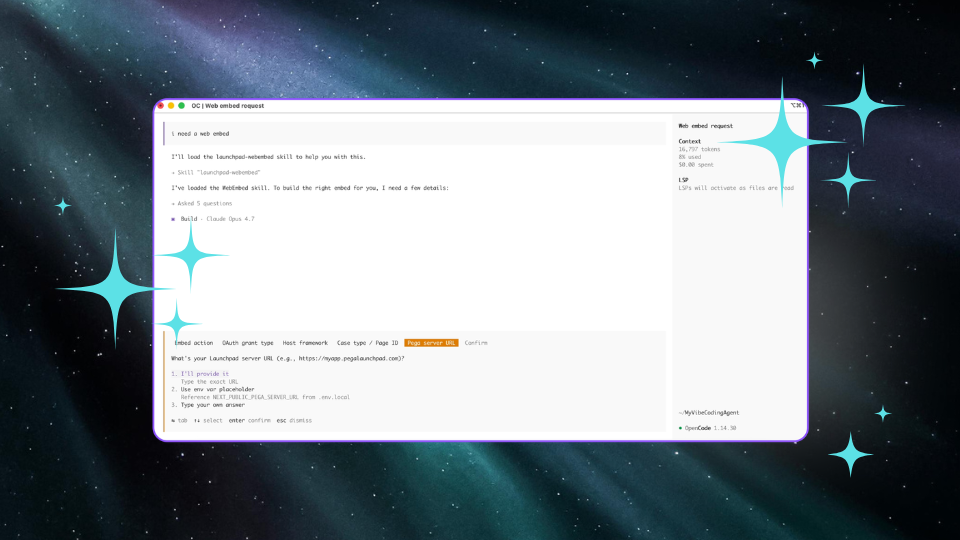
“I need a web embed”
The agent will recognize this matches the launchpad-webembed skill and load it automatically.
Step 2 — Answer the agent’s questions
The agent will ask you for the specifics it needs. It will not guess — you stay in control of the configuration. Expect questions like:
- Embed action — createCase, openAssignment, or openPage?
- OAuth grant type — PKCE (authCode) for public-facing sites, or Client Credentials for trusted/internal environments?
- Host framework — Next.js/React (TSX) or plain HTML?
- Case type ID or page ID — e.g., Lead, Claim, MyApp__MyLandingPage.
- Pega server URL — a literal URL or an env variable placeholder?
- Follow-ups — depending on action: pageClass for landing pages, file location, etc.
Answer each one based on your Launchpad app and host environment.
Step 3 — Let the agent generate the component
The agent will write a fully-formed TSX (or HTML) file at the path you specified. The generated file:
- Loads the pega-embed.js script once (de-duplicates across renders).
- Builds the <pega-embed> element with all required attributes.
- Wires up lifecycle events (embedcaseclosed, embedprocessingend, embedeventcancel) where appropriate.
- Uses deferLoad="true" and .load() for case/assignment embeds to avoid race conditions.
- Uses env-variable placeholders for secrets — nothing sensitive is hardcoded.
Step 4 — Configure your environment
The agent will tell you exactly which env vars to add. For example, in .env.local:
NEXT_PUBLIC_PEGA_SERVER_URL=https://myapp.pegalaunchpad.com
NEXT_PUBLIC_PEGA_CLIENT_ID=your-client-id
NEXT_PUBLIC_PEGA_CLIENT_SECRET=your-client-secret # Client Credentials only
NEXT_PUBLIC_PEGA_AUTHORIZE_URI=https://.../uas/oauth/authorize # PKCE only
Step 5 — Update the Launchpad CORS policy
This step happens in Launchpad, not in your code. Without it, the browser will block the embed:
- Go to App Settings → Default Settings → Cross Origin Resource Sharing Policy (or Rules Library → Security → CORS Policies).
- Add your host domain (e.g., https://partnerportal.com) as an AllowedOrigin.
- Add the CORS rule to the appropriate Configuration Set so it deploys with your app.
Use exact domains in production — never *.
Step 6 — Generate OAuth credentials
In Launchpad, create OAuth credentials for the operator the embed will run as:
- Client Credentials flow → you’ll get a clientId + clientSecret.
- PKCE flow → you’ll get a clientId + an authorizeUri. No secret needed.
Paste these into your .env.local.
Step 7 — Run your host app
Start your Next.js (or other) app, navigate to the route the agent created, and the embedded Launchpad experience will render in place.
Step 8 — Iterate
Ask the agent for follow-up changes in plain English:
- “Pre-populate CustomerID and Channel on the case.”
- “Switch this embed from Client Credentials to PKCE.”
- “Change the theme brand color to #ff6600.”
- “Add a handler that redirects to /thanks after the case closes.”
The agent will edit the existing file in place using the skill’s conventions — no rewrites from scratch.
A few tips for success
- Use PKCE for anything public-facing. Client Credentials embeds the secret in browser code; that’s fine for internal tools behind SSO, risky for the open web.
- Theme the embed to match the host site. The theme JSON attribute accepts design tokens that make the embed look native to your host — not like a pasted-in iframe.
- Handle all three lifecycle events. embedcaseclosed, embedprocessingend, and embedeventcancel each represent different end-states. Treat them explicitly for a polished UX.
- Restrict CORS origins per environment. Dev, staging, and prod should each list only the exact domains that need access.
WebEmbed turns Launchpad into a portable capability you can drop anywhere a browser can render HTML. And with the launchpad-webembed skill, going from “I need a web embed” to a working, themed, authenticated component is a short conversation — not a technical deep-dive.
Get started
Install the skill and follow the instructions in the public repository:
github.com/pegasystems/pega-launchpad-agent-skills
Use this command to kickstart the skill:
npx skills add https://github.com/pegasystems/pega-launchpad-agent-skills
Once installed, simply describe what you need to your AI agent. It handles the rest and gives you guidance on how to get the web embed live in your application.
About the Author
As part of the Launchpad Provider Success team, Parag Jain helps clients design and launch impactful software solutions, setting them up for successful business outcomes from day one.